
Answer: Exchange server 2010 allows us to host multiple mail enabled domains and increase the ROI of our Exchange Server at a zero cost.
To configure our Exchange Server 2010 to receive mail for other mail domains follow the steps below.
Open Exchange management console – > Organization Configuration -> Hub Transport -> and go to the Accepted Domains tab.
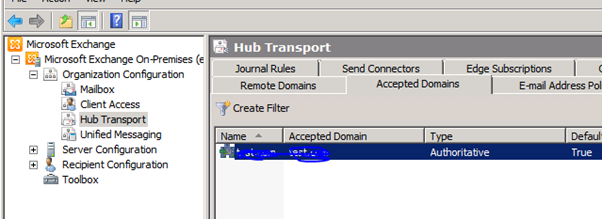
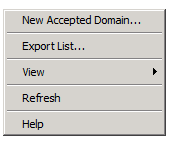
Right Click or use the left action menu and click on New Accepted Domain option.
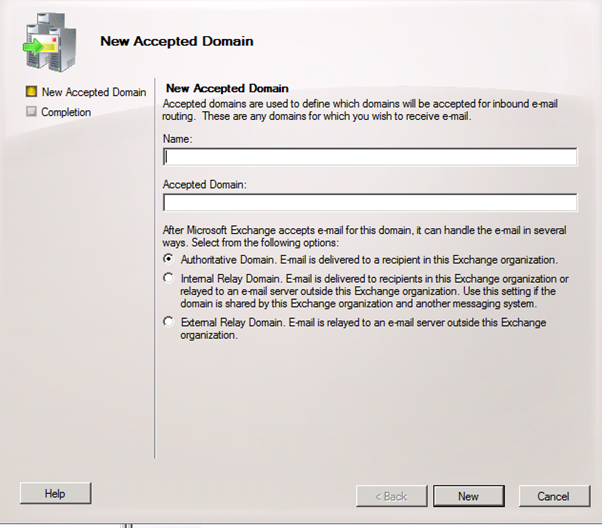
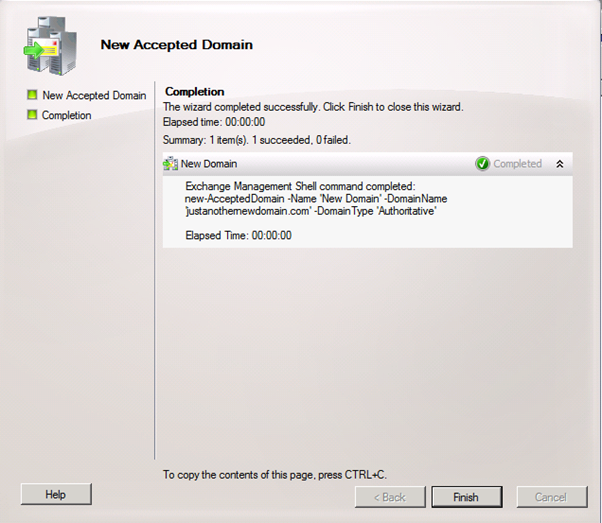
In the new wizard type the name, the new domain and type of domain.
Example.
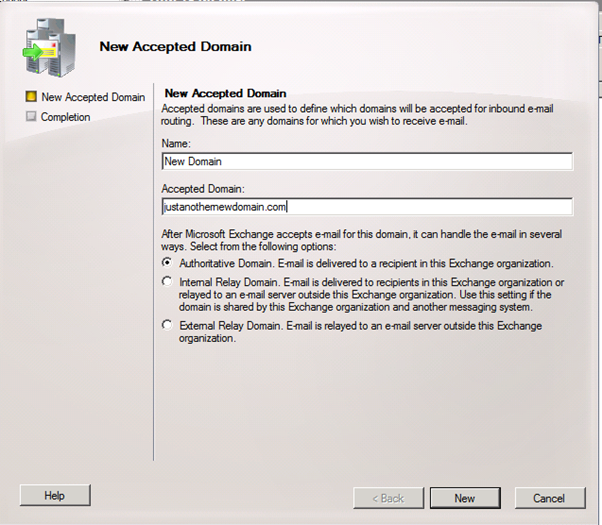
Click new and finished.
Just remember that you need to point the new domin’s DNS record to you firewall IP address using you domain register first.